1. Executive Architectural Summary
Multi-Factor Authentication (MFA) fatigue attacks—commonly known as notification bombing—occur when threat actors obtain compromised primary credentials and repeatedly trigger mobile push approval prompts until an employee inadvertently approves access out of habit, frustration, or confusion.
This architecture transitions enterprise authentication from vulnerable binary "Approve / Deny" prompts to a zero-trust situational awareness gate. By combining real-time public IP geolocation telemetry, target application context, and mandatory two-digit number matching challenges across all tenant identities, blind push approvals are completely eradicated.
2. Prerequisites & Role Assignments
- Least-Privilege Directory Role: Authentication Policy Administrator (avoids Global Admin overhead).
- Authentication Policy Platform: Managed via Microsoft Entra Authentication Methods Policies (legacy MFA portal deprecated).
- Mobile Client Baseline: Current production release of Microsoft Authenticator (iOS / Android).
- Graph SDK Scope:
Policy.ReadWrite.AuthenticationMethod.
3. Entra Admin Center Configuration Walkthrough
High-resolution verification captures with step-by-step technical analysis
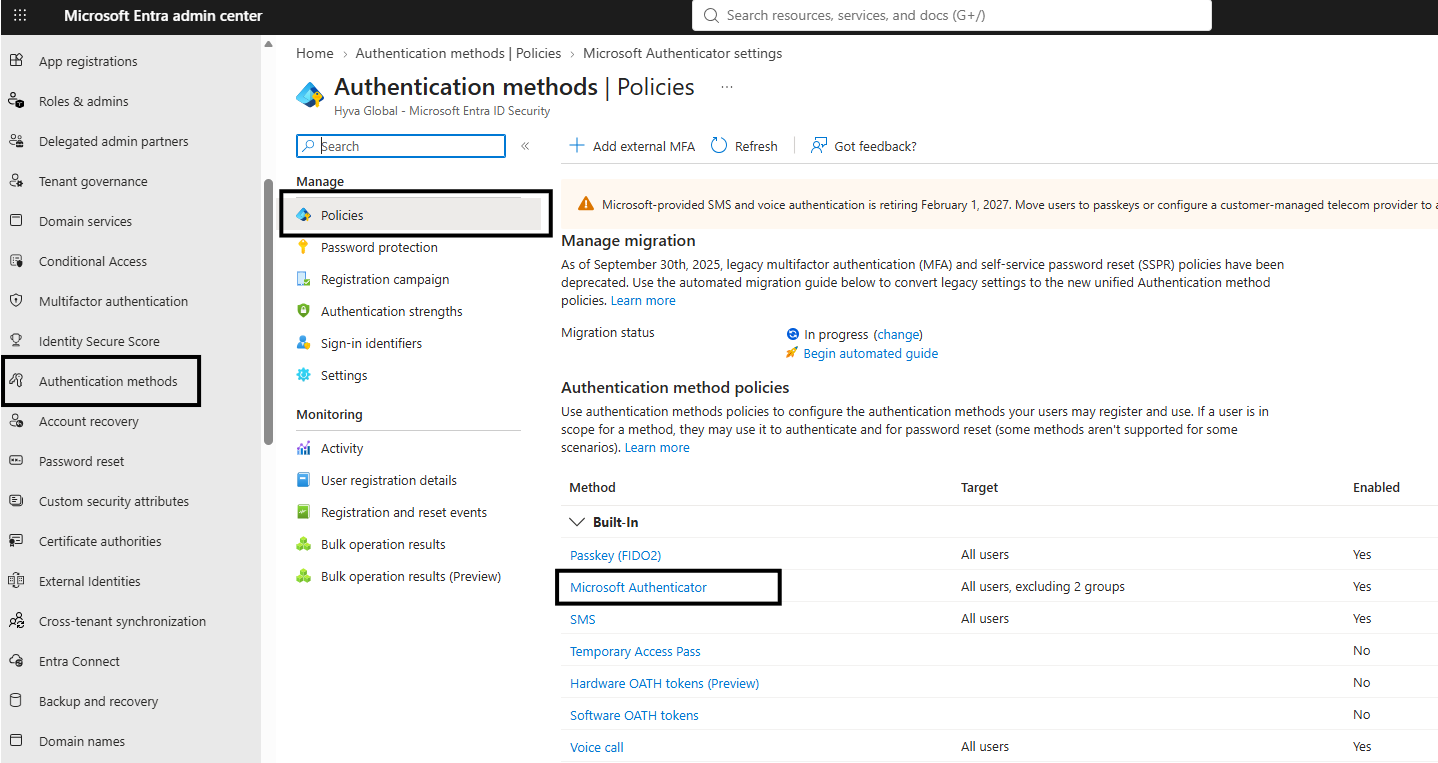
Unified Policy Migration
In the Microsoft Entra admin center, browse to Protection > Authentication methods > Policies.
Modern authentication management centralizes all tenant MFA mechanisms into declarative method policies. Under the Built-In methods table, select Microsoft Authenticator to open targeted push parameters.
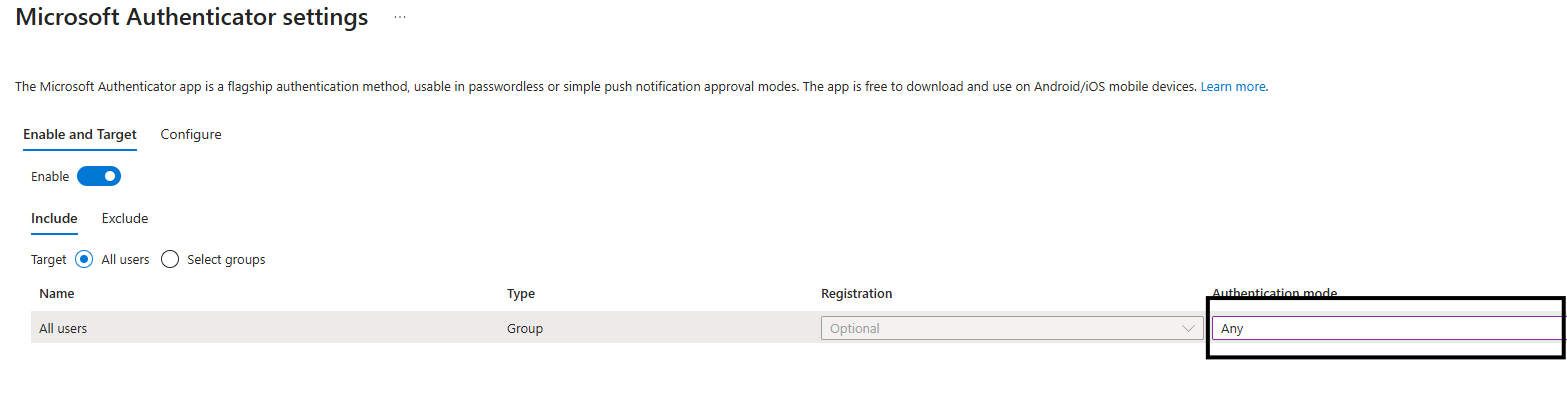
Authentication Mode: Any
On the Enable and Target tab, ensure the master policy toggle is set to Enable = On and target All users (or a designated pilot security group).
Ensure Authentication mode is configured to Any. Configuring Any mode ensures that both traditional push notifications and passwordless phone sign-in challenges inherit context and number matching.
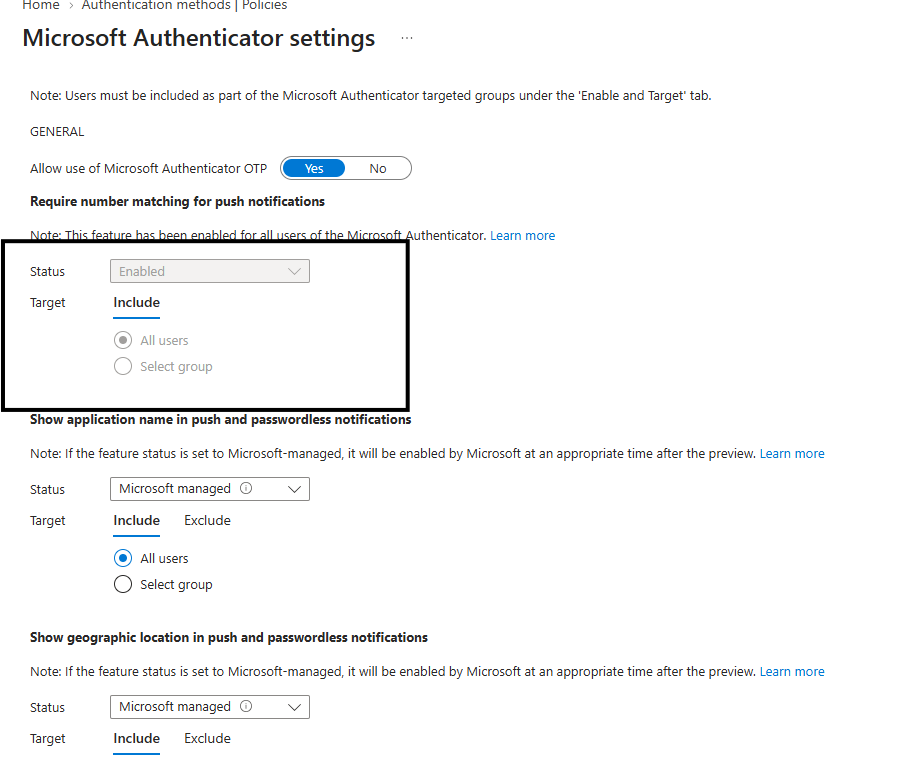
Number Matching Enforcement
Switch to the Configure tab. Verify that Require number matching for push notifications is set to Enabled and targeted to All users.
Number matching forces users to look at their workstation display, read a random two-digit challenge number, and manually type it into their mobile Authenticator app before any authentication token is granted.
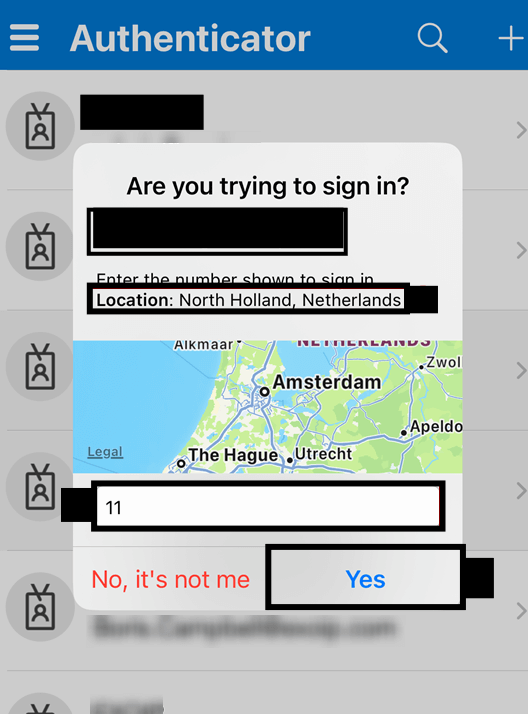
Mobile Challenge Screen
When an authentication handshake triggers, the employee's mobile prompt surfaces:
- ✓ IP-derived City & Country Pin (e.g. Amsterdam, NL)
- ✓ Exact Workload Name (e.g. Office 365, Azure Portal)
- ✓ Mandatory 2-Digit Input Gate
If the map pin indicates an unexpected geographic location, users tap "No, it's not me", automatically flagging the session to Entra Identity Protection.
4. Telemetry Handshake & Defense Lifecycle
During authentication, Entra ID extracts the client's public egress IP and queries Microsoft threat intelligence tables to resolve geographic coordinates down to city and country.
The resolved location and requested resource identity (e.g., Azure Portal) are packaged into an encrypted push challenge dispatched via Apple Push Notification Service (APNs) and Firebase Cloud Messaging (FCM).
The Authenticator client presents the map pin and app name alongside a mandatory two-digit challenge. If the employee is in the Netherlands and the prompt originates abroad, access is immediately denied.
Denied or mismatched prompts trigger self-reported fraud telemetry directly into Microsoft Entra Identity Protection, instantly raising user risk scores and revoking active sessions.
5. Automated Deployment via Microsoft Graph PowerShell
To enforce this policy as an immutable baseline across your tenant and integrate it into Infrastructure as Code (IaC) CI/CD deployment pipelines:
# Authenticate with least-privilege policy administration scope
Connect-MgGraph -Scopes "Policy.ReadWrite.AuthenticationMethod"

# Construct declarative policy body enforcing geolocation, app context, and number matching
$policyParams = @{
    "@odata.type" = "#microsoft.graph.microsoftAuthenticatorAuthenticationMethodConfiguration"
    featureSettings = @{
        displayLocationInformationRequiredState = @{
            state         = "enabled"
            includeTarget = @{ targetId = "all_users" }
        }
        displayAppInformationRequiredState = @{
            state         = "enabled"
            includeTarget = @{ targetId = "all_users" }
        }
        numberMatchingRequiredState = @{
            state         = "enabled"
            includeTarget = @{ targetId = "all_users" }
        }
    }
}

# Commit configuration to Microsoft Authenticator policy engine
Update-MgPolicyAuthenticationMethodPolicyAuthenticationMethodConfiguration `
    -AuthenticationMethodConfigurationId "MicrosoftAuthenticator" `
    -BodyParameter $policyParams

Write-Host "[SUCCESS] Tenant baseline enforced: MFA Geographic Telemetry & Number Matching Active." -ForegroundColor Green
6. Operational Considerations & VPN Architecture
IP Resolution vs. Hardware GPS: Because telemetry relies on public egress IP rather than on-device GPS hardware (to preserve employee privacy), users connected to corporate full-tunnel VPNs or ZTNA proxies will report the gateway datacenter egress location rather than their physical home coordinates.
User Education Baseline: Proactive user onboarding documentation prevented false-positive incident tickets. This implementation conforms with NIST SP 800-63B Section 5.1.4.2 (out-of-band authenticators) and CIS Microsoft 365 Foundations Benchmark v3.0.